
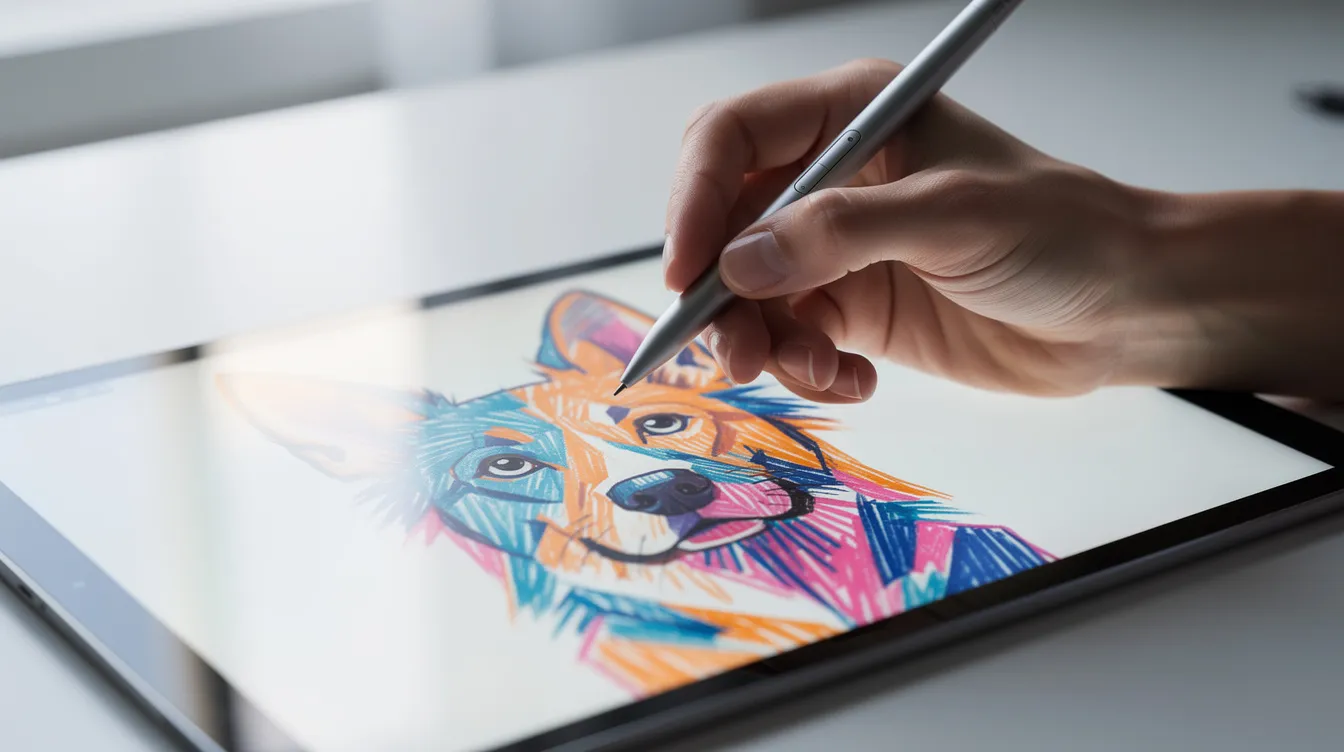
I estimate heating and cooling jobs for a small contractor in Tucson. Eighteen months ago I bought a secondhand iPad so I could draw my rescue greyhound, Biscuit, without wasting paper. Everything I know about styluses I learned by trying them, messing up, and searching for answers at odd hours. I am a hobbyist, not an expert.
Quick Answer: What Is a Stylus Pen and Do You Need One?
A stylus pen is a pen-shaped instrument designed for precise and accurate input on touchscreen devices like iPads, Android tablets, and smartphones. If you look up the meaning in any dictionary, it traces back to ancient marking tools, but today it refers to a digital pointing device. Styluses come in both passive and active versions. A basic capacitive stylus is suitable for casual browsing and simple notes. Active styluses are essential for drawing and serious note taking because of their features.
A stylus offers precise control for drawing and writing, and it reduces fingerprint smudges on touchscreen devices. Here is how a finger compares to a stylus:
-
Precision. A finger covers a wide area on screen. A stylus tip lands where you aim.
-
Line control. Fingers produce thick, wobbly strokes. A stylus lets you vary thickness and pressure.
-
Smudges. Fingers leave prints. A stylus keeps the glass cleaner.
-
Fatigue. Drawing with a finger for an hour cramps your hand. A pen shape feels more natural.
-
Small targets. Tiny buttons in apps are easy to miss with a fingertip, less so with a fine tip.
Do you need one? For rough sketches and colour blocking, a finger works. For detail, lines around eyes or fur on a greyhound’s nose, you want a stylus. My verdict: if you plan to keep drawing, yes.
Prices in 2024 and 2025 give a useful benchmark. Mesh or rubber passive styluses run about $5 to $20. Active pens from third parties cost $30 to $70. An Apple Pencil (2nd gen) lists around $129 new. A used Apple Pencil matched to your iPad model is my ideal sweet spot. Additionally, keep in mind that Procreate is not free. It is a paid app, so check whether the drawing app you want is affordable before shopping for accessories. Read more on whether Procreate is free to use.
You can start with any cheap stylus you already own. Wait before spending more.
How Stylus Pens Work With Touchscreen Devices
Modern iPads use capacitive screens that detect changes in electrostatic charge. Resistive screens, which respond to physical pressure, are rare now. Styluses are categorized based on how they communicate with a device screen.
Passive styluses act like a finger on touchscreen devices. The rubber or mesh tip conducts your body’s charge to the capacitive layer, meaning the tip must be wide enough to register. That is why passive tips feel blunt.
Active styluses communicate electronically with touchscreen devices. They include built in electronics for enhanced functionality: pressure sensitivity, tilt recognition that allows for shading effects when angled, palm rejection, and sometimes hover preview. In Procreate, one stroke with my Apple Pencil goes from a light, loose line across Biscuit’s back to a dark, controlled mark around his eye and nose, all because the pen reports how hard I press and at what angle.
There is also a category called EMR styluses, widely used in some Wacom products. EMR styluses draw power wirelessly from the device’s electromagnetic field, meaning they do not require batteries or charging. Some newer styluses may have features like programmable buttons and haptic feedback. Haptic styluses simulate physical sensations while writing, providing feedback that feels closer to paper. Bluetooth pairing often adds shortcuts and button control, but basic strokes rely on the screen hardware.
If you are curious about the history of this instrument, the Wikipedia page on stylus computing covers how these protocols evolved over decades. A broad summary is also in the Wikipedia overview of styluses.
Signs your stylus is working correctly:
-
Clean lines without jitter or broken segments
-
No noticeable delay between stroke and marking on screen
-
Accurate input so the line goes where you intend
-
Your palm resting on the screen is ignored
Types of Stylus Pens and How to Choose One
I tested a cheap rubber tip first. It dragged on the glass like a sneaker on a gym floor. My lines were wobbly, and I blamed my hand. Then I tried a firmer, finer active tip. The wobble dropped with nothing else changed. That taught me the tool matters.
Passive styluses come in rubber, mesh, and disc styles. Rubber is cheapest but flattens fast. Mesh is slightly finer. Disc tips let you see under the tip for more precision, though they break easily. I still keep a passive one in my bag for tapping and quick notes, because for those purposes it is fine.
Active styluses are tied to specific device families. Apple Pencil 1st gen versus 2nd gen versus Pencil Pro all differ. The Logitech Crayon is active but sometimes lacks pressure. Third-party pens often claim “pressure sensitive,” but true pressure depends on the digitizer. Read those claims carefully. Active styluses offer more precision than passive styluses. Stylus pens with narrow tips provide enhanced precision for details, and styluses with pressure sensitivity allow varied line thickness, providing the ability to mimic traditional art tools. You can check each version on the Apple Pencil page.
What to look for, in order:
-
Compatibility with your exact tablet model
-
Fine, firm tip
-
Palm rejection
-
Real pressure sensitivity (not marketing)
-
Tilt detection
-
How it charges and battery life
-
Replacement nib cost
Pens with a ballpoint on one end are handy for signing paper documents but compromise balance and tip shape for digital work.
Recommendations. A broke student on Android: find a fine-tip active pen with palm rejection. An iPad beginner on a budget: a used Apple Pencil matched to your model. A serious user eyeing art or design: a new Pencil with pressure and tilt for creative tasks. Professional designers and artists can judge from there.
Compatibility: Will a Stylus Pen Work on Your Tablet or Phone?
In early 2023 I bought a stylus that looked compatible with my iPad. It skipped lines, had no pressure, and no palm rejection. Styluses must match specific screen digitizer technology for compatibility, and not all styluses work with every tablet. That problem cost me money and time.
Passive styluses work on nearly any capacitive screen. Active pens are locked to device families. A seller writing “works with all iPads” on a sales page is wrong. Apple Pencil 1st gen, 2nd gen, USB-C Pencil, and Pencil Pro each support different iPad models. Check the Apple Pencil compatibility page for the current list rather than trusting a resale listing title.
Before shopping, verify these data points:
-
Your iPad model number (printed on the back, or in Settings, then General, then About)
-
Your OS version
-
The manufacturer’s official compatibility list on their website
-
Whether the stylus requires Bluetooth pairing
Edge cases: touchscreen Windows 2-in-1 computer laptops work with Microsoft Pen Protocol or Wacom AES pens, but a non-touch laptop or external monitor is not compatible and would need a separate graphics tablet or pen display. Check device specifications before purchasing a stylus.
If you can, try a pen in a store. For a used Apple Pencil, ask the seller to show it pairing and holding a charge. Easy returns matter when comfort is personal. Protect your privacy by meeting in public or using a platform with buyer protection.
Using a Stylus Pen for Drawing, Note Taking, and Everyday Tasks
Eighteen months ago I sketched Biscuit with a cheap mesh stylus in Procreate. The lines jittered on every curve. Later, with an Apple Pencil, pressure sensitivity let me control every stroke. Active styluses are generally used for note taking and digital art due to their features, and once you feel the difference, it is hard to go back.
Setup is straightforward: pair the pen, open your app, and adjust brush settings for pressure and tilt. In Procreate I turned up StreamLine smoothing gradually until my lines stopped shaking but still felt intuitive. I learned to draw from my shoulder and elbow instead of just my wrist, zoom in for details, and use the two finger tap to undo, the reason this blog is named Two Finger Undo. Layers help too: keeping a rough sketch layer separate from a final line layer means one bad stroke never ruins the drawing. For a walkthrough, see how layers work in Procreate. If you want a closer look at keeping sketch and ink apart, layer basics for beginners covers the details.
A stylus pen can offer pressure sensitivity for detailed drawing across many styles, from inking to shading, providing an accuracy that a finger simply cannot match. Styluses enhance productivity and creativity on digital devices, and they allow for seamless document editing and annotations. Everyday tasks include signing PDFs, annotating screenshots, tapping tiny buttons, or recording a grocery list with messy hands in the kitchen. For note taking in GoodNotes or OneNote, adjust pen thickness, choose templates, and turn on handwriting recognition.
Palm rejection technology allows comfortable stylus use, so your hand rests on the screen without leaving stray marks. A matte paper-feel screen protector helps with grip and reduces glare. Styluses can help prevent accidental touches on touchscreens, which keeps creative work and productivity on track. You can also find tutorials on YouTube if you search for your specific app and pen model.
Caring for Your Stylus Pen and Troubleshooting Common Problems
I have worn through one rubber tip and lost a pen cap. Small parts matter more than I expected. Dead styluses always die mid-sketch, so charge active pens regularly, wipe the tip and screen to remove grit, and replace flattened or cracked tips. Store your pen so the tip is not crushed in a bag. Magnetic holders or sleeves help, and new arrivals in stylus accessories make storage easier every year.
Troubleshooting checklist:
-
Check battery level
-
Re-pair Bluetooth
-
Restart the app or device
-
Clean the tip
-
Swap a visibly worn nib
-
Update your OS in case a recent change improved pen support
Common issues vary: offset lines may need a firmware update, lag often comes from a low battery or heavy processing, and random dots usually mean a dirty screen or stray palm contact.
Replace your stylus when the battery is sealed and dead, the barrel is bent, it stays unresponsive after cleaning, or compatibility is lost on a new tablet. Products do not last forever.
You do not need a perfect stylus. Choose one with the right features for your purposes, give it a few weeks, and judge it by whether your lines feel more controlled. That matters more than chasing the latest model. Pick up any halfway decent pen, open an app, and start. The work you put in on screen will always outweigh the gear.
FAQ
Can I draw on an iPad with just my finger? Yes, for rough sketches and colour blocking. A stylus gives better control for detail and is required for fine lines.
Is a cheap stylus good enough to learn on? Yes, if it has a fine, firm tip and palm rejection. Over time you will probably miss pressure sensitivity, but it is a fair starting point.
Do I need an Apple Pencil to use Procreate? No. Procreate works with a finger or a basic stylus, but an Apple Pencil unlocks pressure and tilt, which change how brushes respond.
Is it safe to buy a used Apple Pencil? I did. Confirm the model is compatible, inspect the tip, and ask the seller to show it pairing and holding a charge. Check the web listing carefully. If you searched in español or another language, double-check that the product page description matches your iPad model.
How do I stop my lines from looking shaky? Draw with your whole arm, use light smoothing, zoom in, and use a firm, fine tip. Practice on a blank page every day for ten minutes before starting a real drawing.